
Co-host Live — and how to plug in your DJ software
Host one live show on two stations at once, bring in guests with a link or a code — and route BUTT, Mixxx, Virtual DJ or a hardware mixer into the room with a virtual audio cable.
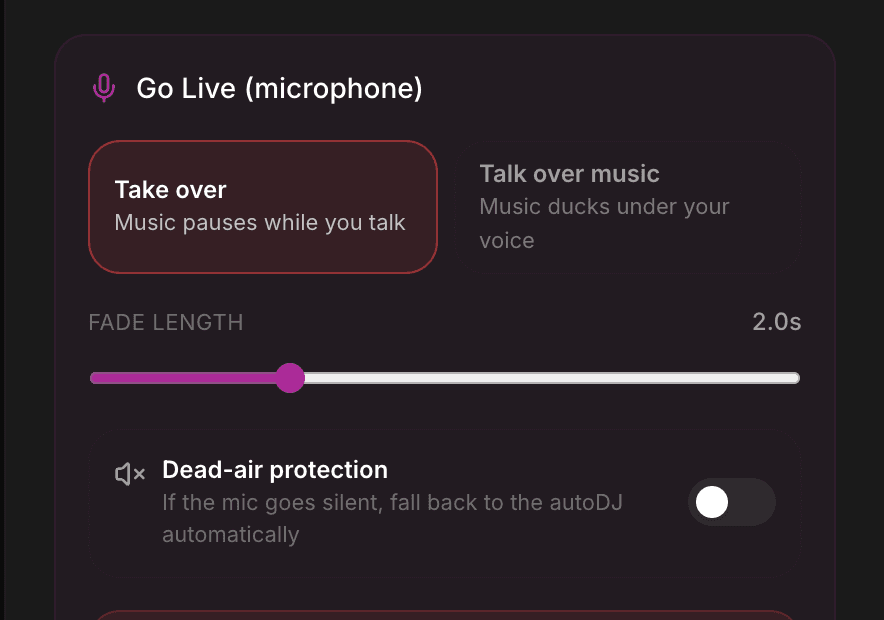
Co-host Live puts two (or more) people in one private room where everyone hears each other instantly — and lets every participating STATION air that conversation live, each to its own audience, at the same time. This guide covers how a show works end to end, and then the part power users ask about first: running your own DJ software or hardware mixer through the room.
Who gets Co-host Live
Co-host Live is included on the Pro and Business plans. Every new account can also use it during the free test period — invite a co-host and try a real two-station show before you subscribe.
How a co-host show works
- Open Co-host Live in your station sidebar (under Broadcast) and press Start a co-host room.
- Share the invites: a co-host link for another station owner (their station airs the show too), and a guest link, QR code or 6-letter code for anyone else — guests join from any phone browser, no account.
- Talk. The room is real-time — there is no stream delay between you.
- When you are ready, each station owner presses Go live on my station. Your station airs the whole room; so does theirs. Stopping only affects your own station.
Never monitor your own public stream during a show
The public stream runs seconds behind the room (that is how internet radio works). The room itself is your monitor — if you also open your station’s player you will hear yourself echo back late.
What each audience hears
Each station broadcasts the same conversation but keeps its own identity: your talk-over music bed, fades and station settings apply on YOUR station, and your co-host’s apply on theirs. If your internet drops, only your station falls back to AutoDJ — the show carries on airing on your co-host’s station until you rejoin.
Plugging in BUTT, Mixxx, Virtual DJ or a mixer
The room speaks browser audio (WebRTC) — that is what makes conversation-speed audio possible. Icecast encoders like BUTT are one-way and several seconds delayed, so they cannot BE the conversation. But you can absolutely bring your DJ chain INTO the room: the trick is a virtual audio cable, standard kit in every internet-radio studio.
- Install a virtual audio cable — VB-Cable (Windows), BlackHole or Loopback (macOS).
- Route your DJ software’s master output to the cable instead of (or as well as) your speakers.
- In the room’s Audio settings, pick the cable as your microphone — now your decks, jingles and mic-through-your-mixer are your “voice” in the room, on air on every participating station.
- Turn on “Clean input” in the same panel. It switches off the browser’s echo cancellation and noise suppression — voice processing that audibly chews up music — and captures in stereo.
- Monitor on headphones (or route the room’s output to a return channel on your mixer with the speaker picker). With clean input on, the browser no longer cancels echo for you, so open speakers will feed the room back into itself.
Your existing BUTT setup still works
Prefer your own encoder chain for your station’s feed? Keep pushing to your mount as usual and just include the room’s return audio in your mix. The room is still where the conversation happens — the virtual cable carries it both ways.
Guests: a link, a QR, or six letters
Guests do not need an account, an app, or any setup: the invite link (or scanning the QR with a phone camera) opens the room in their browser, they type their name, check their mic, and they are in. If a link is awkward — say you are inviting someone over the phone or live on air — they can go to the join page and type the 6-letter code instead. A room holds up to twelve people including the hosts — everyone hears everyone, so the practical sweet spot for a conversation is smaller than the ceiling.
If a guest’s microphone is blocked they can still join listening-only and enable the mic later from Audio settings. And if someone misbehaves, the host can remove them with one click — the invite can be rotated so old links stop working.
Ready to put this into practice?
Start free and be on air in under five minutes — no software to install.
Start streaming free