Cloud AutoDJ: run your station 24/7 with no software
Upload your music and let Cloud AutoDJ play it to your stream around the clock — no encoder, no spare computer, no software to install. Start, stop and steer it from one panel.
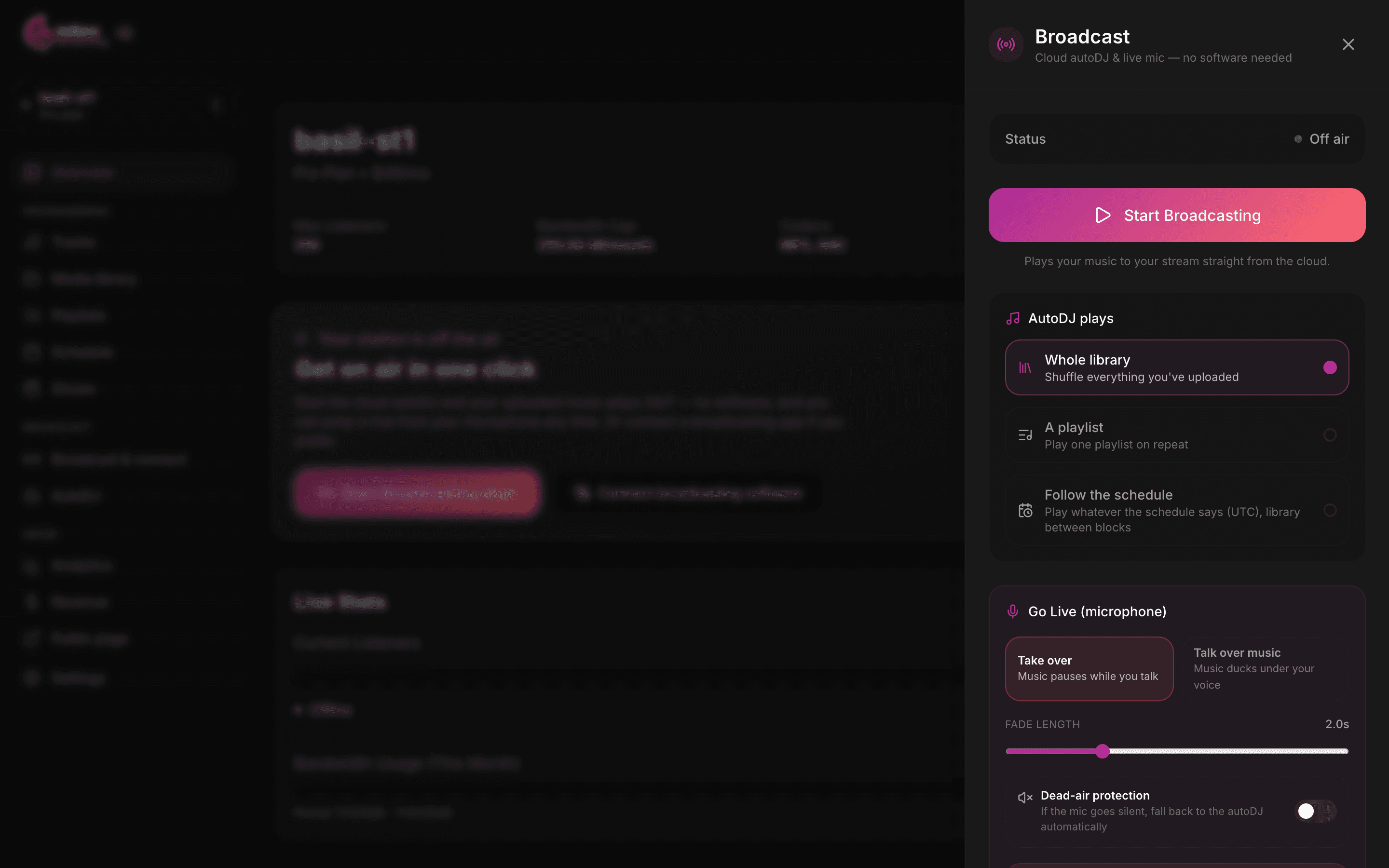
Cloud AutoDJ is the heart of Nobex Streaming. Upload your music, press Start Broadcasting, and your station plays 24/7 straight from the cloud — with your computer off, your laptop closed, and nothing installed. This guide covers how to start and stop it, tell it what to play, and keep it sounding like a real station.
What you need
A browser and some music in your Media library. If you can press a button, you can run a 24/7 radio station — there is no encoder or DJ software to set up.
What Cloud AutoDJ actually does
Most streaming platforms expect you to run encoder software on a computer that stays on. Nobex flips that around: your playout engine lives in the cloud. It pulls from the music you have uploaded and broadcasts it to your listeners — via your CDN listen link and public page — continuously, whether or not you are around.
That means you can build your library today, start the stream, and walk away — the station keeps playing. When you *do* want to jump in live from your mic, you can, and AutoDJ picks right back up when you stop. Everything runs from the floating Broadcast panel, which is available on every station page.
Start and stop broadcasting
Click the floating Broadcast button in the bottom-right corner of any station page to open the panel. Its subtitle says it all: *Cloud autoDJ & live mic — no software needed*.
- 1Press Start Broadcasting. The engine spins up in the cloud (the status shows Starting… for a few seconds).
- 2Watch the status pill flip to ON AIR — your station is now live and playing.
- 3When you want to take the station off air, press Stop Broadcasting. This ends the stream for all listeners.
Tip
The status pill is your at-a-glance truth: Off air, Starting…, ON AIR, or ON AIR · LIVE when your microphone is on. It matches the little pill on the floating button, so you always know your state without opening the panel.
Tell AutoDJ what to play
Under AutoDJ plays, you pick the source that feeds your stream. There are three, and you can switch between them at any time — even while on air.
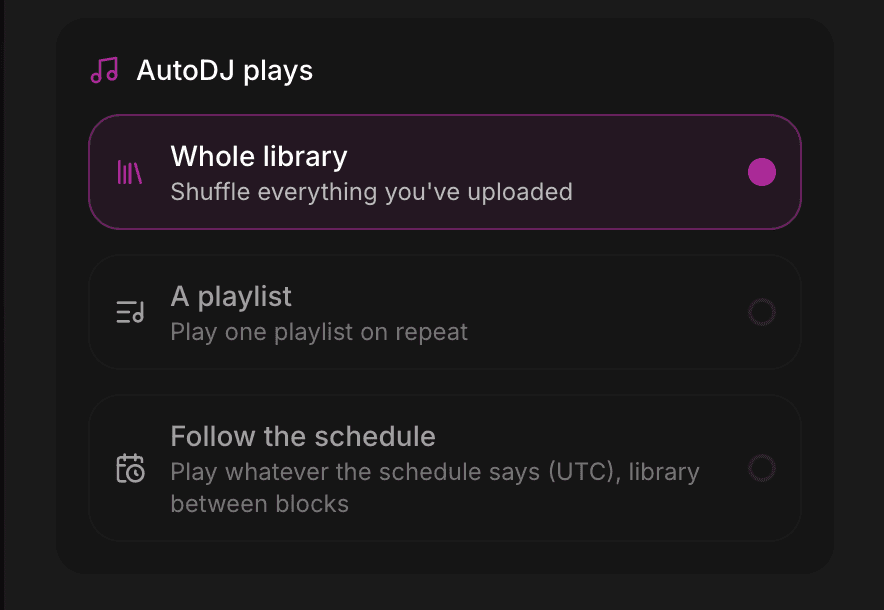
- Whole library — shuffles everything you have uploaded. The zero-effort option: upload music, and you have a station.
- A playlist — plays one playlist on repeat. Pick which one from the dropdown that appears; great for a themed channel or a curated mix.
- Follow the schedule — plays whatever your programming schedule says at the current time (in UTC), and falls back to your library between blocks. This is how you run morning shows, evening mixes and dayparts automatically.
Start simple, grow into it
New stations should begin with Whole library — it gets you on air in seconds. Move to A playlist once you have curated a signature sound, and to Follow the schedule when you are ready to program your week. Nothing is locked in; switch whenever you like.
Rotation modes: shuffle, sequential and weighted
How the next track gets chosen is set by each playlist's rotation mode, which you configure in Programming → Playlists. (The Whole library source always shuffles.) You have three modes:
| Mode | How it picks the next track | Good for |
|---|---|---|
| Sequential | Plays in the exact order you arranged the playlist, top to bottom, then repeats. | Countdowns, mixtapes, story-ordered shows |
| Shuffle | Random order, so no two loops sound the same. | General music channels, background radio |
| Weighted | Random, but each track carries a weight from 1 to 10 — higher weights play more often. | Rotating your hits heavily while resting deep cuts |
Use weighted rotation like a program director
Give your A-list tracks a weight of 8–10 and your slower or older material a 1–3. AutoDJ will lean on your strongest songs without ever making the playlist feel like a short loop.
Change the music on air, with no dead air
You do not have to stop the stream to change what is playing. Playlist edits hot-reload on air — reorder tracks, add songs, or change the weighting, and the running station picks up your changes without an interruption. Switching the AutoDJ source works the same way.
Note
Changes you make while on air apply within about 10 seconds, with a brief, clean transition — listeners hear a smooth handover, not a gap.
It never goes silent
Live radio's worst nightmare is dead air. Nobex is built so your stream keeps sound coming out no matter what, using an automatic fallback chain. Each layer only steps in if the one above it has nothing to play:
- Schedule — if a programmed block is active, it plays.
- Show episode — if that block is a show with an episode dated for today, the episode airs.
- Live mic — if you go live, your microphone always overrides the automation.
- Library rotation — with nothing scheduled and no one live, AutoDJ shuffles your library.
- Silence guard — as a final safety net, an anti-silence guard (
mksafe) keeps the stream alive even in the rare moment nothing else is ready.
The one thing that guarantees this works
The fallback chain can only reach for your library if there is music in it. Keep a healthy pool of uploaded tracks and you are protected — the station will always have something to fall back to.
Get the best out of AutoDJ
- Tag your files before uploading. Nobex reads title and artist from your files' tags, so a well-tagged library shows clean now-playing info to every listener automatically.
- Build a few playlists. Even two or three — an "all day" mix, a "late night" set — give you far more control than shuffling everything.
- Reach for weighted rotation to keep your best tracks front and centre without a repetitive loop.
- Leave it running. AutoDJ is designed to stay on air for weeks. Start it once and let it work.
Keep reading
Ready to put this into practice?
Start a free trial and be on air in under five minutes — no software to install.
Start streaming free