
Go live from your browser
Put your voice on air in one click, straight from your dashboard microphone — take over the music or talk over a ducked bed, with a live meter, fades and dead-air protection. No software required.
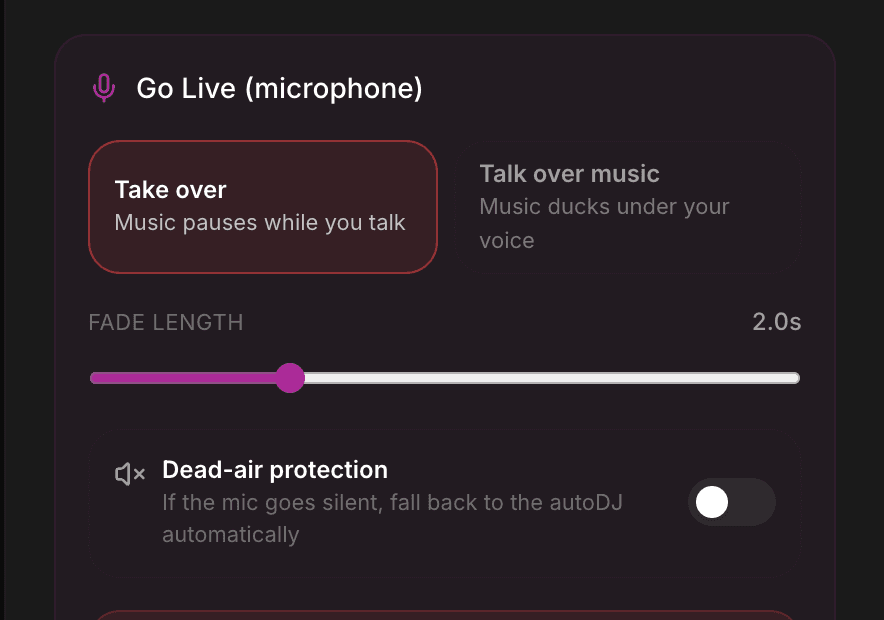
When you want to say something on air, you should not have to launch software or plug in an encoder. Nobex lets you go live from your browser microphone in a single click — introduce a song, host a talk segment, or run a whole show — and hands the music back to AutoDJ the moment you stop. Here is how it works.
Before you start
Your station should already be on air with Cloud AutoDJ. If it is not, open the Broadcast panel and press Start Broadcasting first — see Cloud AutoDJ.
One click to go live
Open the floating Broadcast panel and scroll to the Go Live (microphone) section. Press Go Live. Your browser asks for microphone permission the first time — allow it — and within a moment your voice is on the stream. The status pill changes to ON AIR · LIVE.
When you are done, press Stop Live. AutoDJ fades back in and carries on exactly where the automation left off. Your live mic always overrides whatever AutoDJ is doing, so you never have to stop the stream to talk.
Takeover vs. Talk over music
Before (or during) a live segment, choose how your voice sits against the music. There are two modes, side by side in the panel:
- Take over — the music pauses while you talk. Your voice is the whole stream. Best for full talk segments, interviews or long links.
- Talk over music — the music ducks down to a low bed under your voice and swells back up when you stop. Best for song intros, shout-outs and that classic radio-DJ feel.
Set the bed level
In Talk over music mode a Music level while talking slider appears. Keep it low — around 15–25% — so the bed supports your voice without competing with it. Your voice rides on top, the music dips while you speak, and it comes back the moment you stop.
Smooth transitions with Fade length
The Fade length slider controls how gently the music crossfades as you come in and out. A short fade feels punchy; a longer one feels smooth and produced. Somewhere around 1–2 seconds works for most stations — long enough to sound intentional, short enough to feel responsive.
Watch your level and set your gain
Once you are live, a Mic level meter appears so you can see your voice in real time. Aim to keep it lively but out of the red — the meter turns red near the top to warn you that you are getting too hot.
If your voice is too quiet or too loud, adjust the Mic gain slider. It scales your input from 0% up to 200%, so you can bring up a soft mic or tame a loud one without touching your operating system's settings.
Do a quick level check
Speak at your normal broadcast volume and watch the meter before you say anything important. Nudge Mic gain until your peaks sit comfortably below the red. Ten seconds now saves a muddy or clipped segment later.
Dead-air protection
Live shows have a hidden risk: you leave the mic on, step away, and silence goes out to your listeners. Dead-air protection guards against exactly that. Turn it on and, if your microphone goes silent for too long, Nobex automatically drops the live session and returns to AutoDJ.
Two settings tune how forgiving it is:
- Silence before fallback — how long the mic must stay silent (3–30 seconds) before Nobex steps in.
- Silence sensitivity — the loudness threshold, in dB, that counts as "silence". Lower dB is stricter: only near-total silence triggers the fallback, so natural pauses in speech will not.
Turn it on for unattended or remote shows
If there is any chance you could get pulled away mid-broadcast — a live event, a phone call, a flaky connection — enable dead-air protection. It is the difference between a graceful return to music and minutes of dead air nobody is watching.
Browser and microphone notes
- Live mic broadcasting works in a recent Chrome, Edge, Firefox or Safari. If the panel says your browser is not supported, update it or switch.
- Your browser will ask for microphone permission the first time. If you accidentally block it, re-enable the mic for the site in your browser's site settings.
- Use headphones while you go live so the stream does not feed back into your microphone.
- This works on a phone browser too — open the dashboard on your phone and the same Go Live button is there.
A tidy live workflow
- For song intros and shout-outs, use Talk over music with a low bed — it keeps the energy up.
- For interviews and long talk, switch to Take over so nothing competes with the conversation.
- Set a Fade length you like once; it carries over to every live session.
- Keep Dead-air protection on whenever you might step away from the mic.
- Remember you never stop the stream to talk — go live over AutoDJ, and it resumes automatically when you press Stop Live.
Keep reading
Ready to put this into practice?
Start a free trial and be on air in under five minutes — no software to install.
Start streaming free