
Build your music library and playlists
Upload your tracks, keep them tagged and searchable, then shape the sound of your station with playlists and sequential, shuffle or weighted rotation.
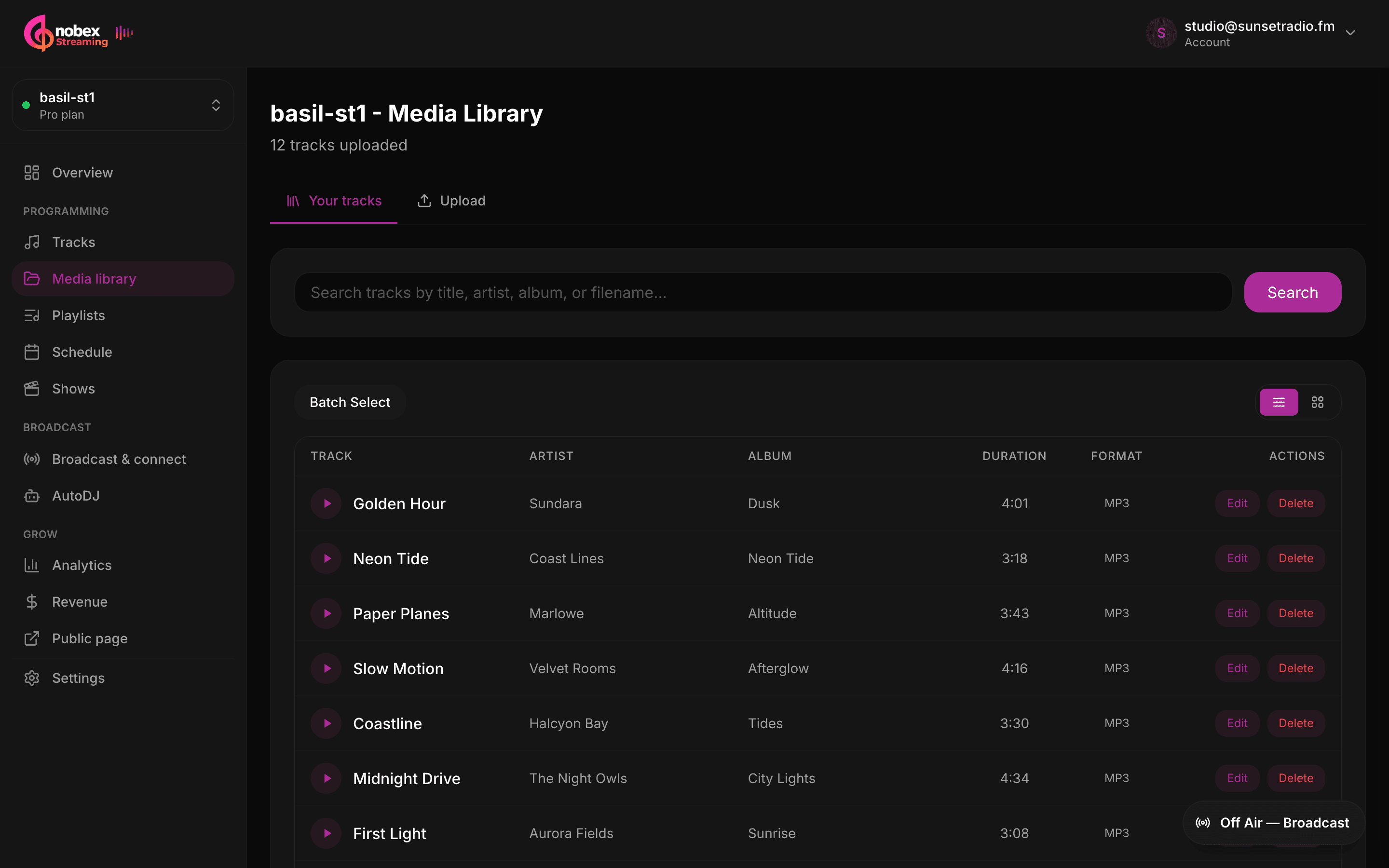
Your music library is the heart of your station — it's what Cloud AutoDJ plays around the clock. Get your tracks uploaded and tagged once, organize them into playlists, and you can program a station that sounds like *yours* instead of a random shuffle. This guide covers uploading, browsing and building playlists, plus the rotation modes that decide what plays and how often.
Where this lives
Everything here is under Programming → Media library and Programming → Playlists in your station menu. You can upload while you read.
1. Upload your audio
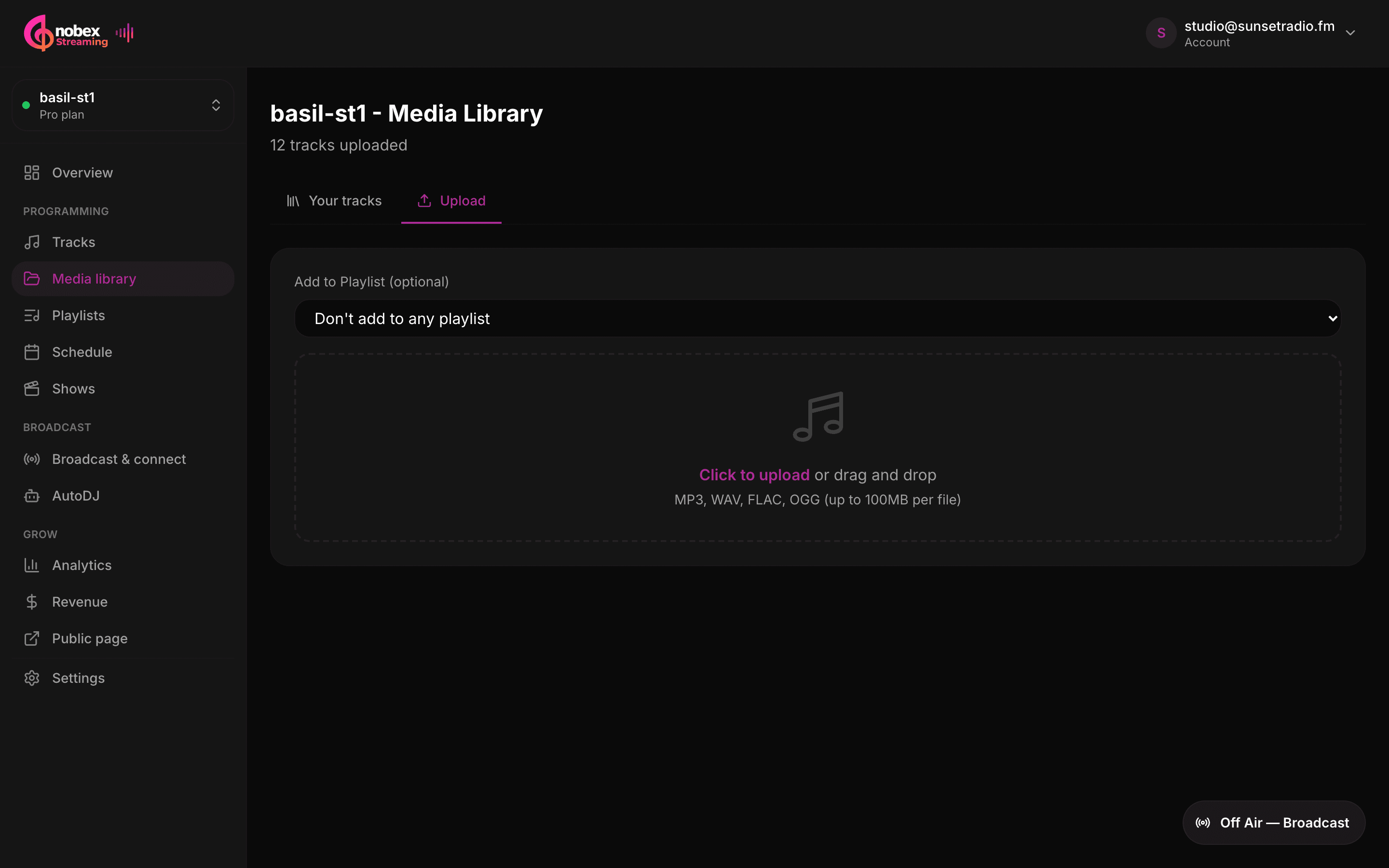
Open Media library and switch to the Upload tab. Drag your files onto the upload area — where it reads “Click to upload or drag and drop” — or click to browse. You can drop many files at once, and each shows its own progress as it lands.
- Supported formats: MP3, WAV, FLAC, OGG, M4A and AAC, up to 100 MB per file.
- Nobex reads the ID3 tags on each file and backfills the title, artist and album for you — including the ISRC, which your royalty reports use later.
- Missing or messy tags? You can edit any track after it uploads, right from the library grid.
Tag before you upload
A minute spent tagging in your desktop music app pays off forever. Clean artist, title and ISRC tags mean an organized library, accurate now-playing text, and royalty reports that fill themselves in. Fixing tags after the fact is slower.
See the “Add to Playlist (optional)” dropdown above the upload area? Pick a playlist there and every track you upload in that batch is filed into it automatically — a fast way to build a themed set as you go. Leave it on “Don't add to any playlist” to just grow your library.
2. Browse, search and clean up
The Your tracks tab lists everything in your library, paginated, with a count at the top. Use the search box to filter by title, artist, album or filename — handy once you have a few hundred tracks. From the grid you can preview a track, edit its metadata, or delete it.
Deleting is permanent
Removing a track takes it out of your library and any playlists it sits in. If it's currently in rotation, it simply stops being picked. There's no undo, so delete deliberately.
3. Create playlists
A playlist is a named, ordered set of tracks you can drop into your schedule or point AutoDJ at. Open Playlists and click New Playlist, give it a name and an optional description, then Create Playlist.
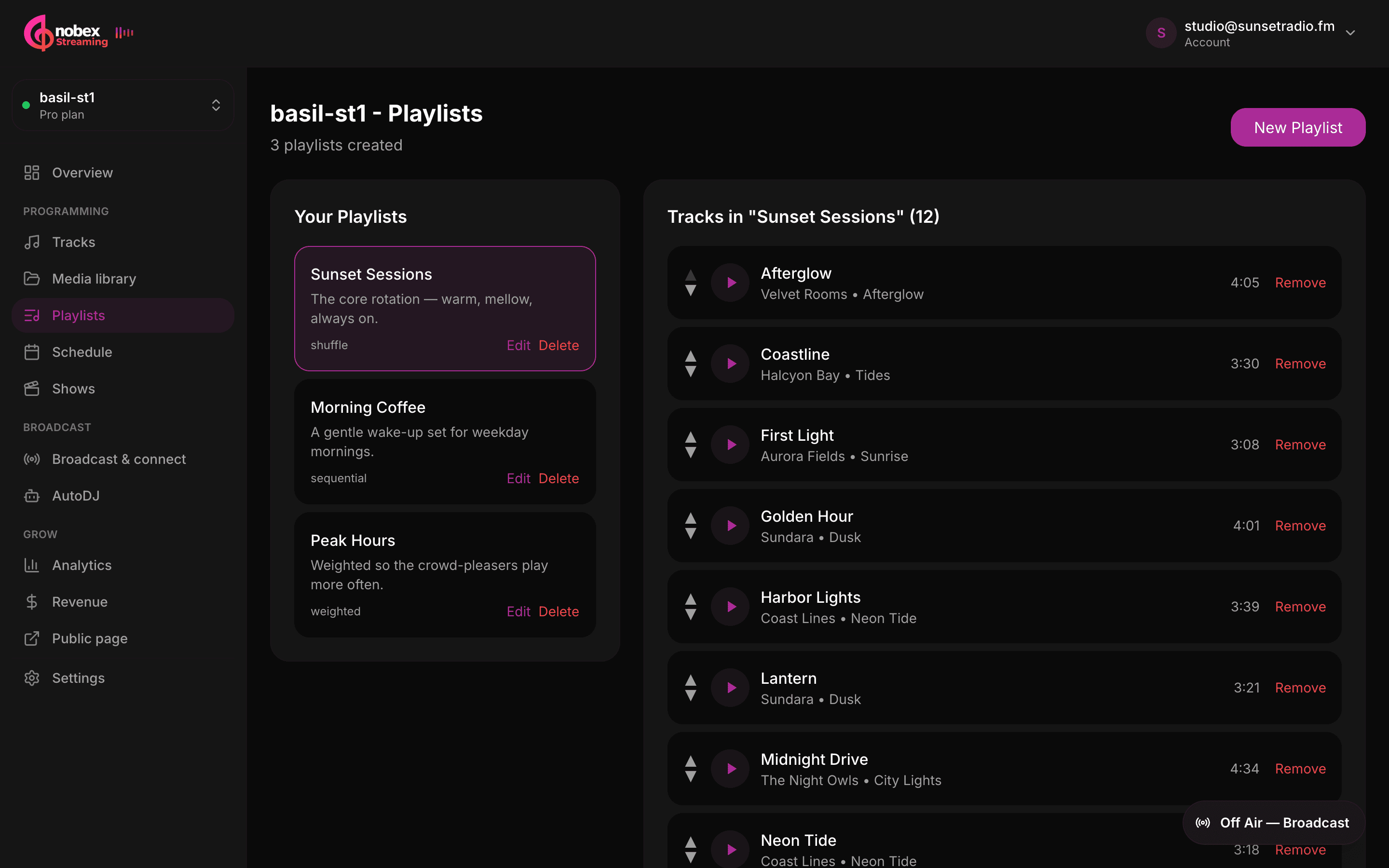
Select a playlist to open it. Under Add Tracks, search your library and hit Add on anything you want in the set — tracks already in the playlist are hidden so you don't double them up. Everything you add lands in the “Tracks in …” list above.
Build themed playlists, not one giant list
Separate playlists for Morning Chill, Drive-Time Energy or Late-Night Jazz give you real programming control. You can schedule each one at the right time of day instead of shuffling your whole catalogue into every slot.
4. Rotation modes: sequential, shuffle, weighted
A playlist plays in one of three rotation modes, shown on each playlist in the list. The mode decides the *order* tracks are chosen in:
| Mode | What it does | Reach for it when… |
|---|---|---|
| Sequential | Plays top-to-bottom in the exact order you set, then repeats. | Order matters — a countdown, a themed hour, a curated journey. |
| Shuffle | Plays in a random order, reshuffling as it goes. | You want variety and no fixed running order (the default for a new playlist). |
| Weighted | Random, but each track carries a weight so some play more often than others. | You have hits you want heavier and deep cuts you want lighter. |
On a weighted playlist, each track shows a small × weight field. Set it from 1 to 10 — a track weighted 10 is picked far more often than one weighted 1. Leave everything at the default and a weighted playlist behaves like a plain shuffle.
Use weighting for a heavy/light mix
Think of it like real radio rotation: put your strongest, most on-brand tracks at weight 8–10 so they come around often, and park album tracks and rarities at 1–3 so listeners still get surprises without hearing them as much.
5. Reorder tracks
Order is everything for a sequential playlist — and still useful as a default running order for the others. In the “Tracks in …” list, use the ▲ / ▼ arrows on each row to move a track up or down. The new order saves as you go.
Tip
You can preview any track right in the playlist with its play button, so you can sanity-check a transition without leaving the page.
6. Edits go live automatically
You don't need to stop and restart your stream to change your music. When you add, remove, reorder or re-weight tracks, the change hot-reloads on air — the cloud playout picks it up on its next sync, without cutting off the current song. Program while you're live.
Need a playlist outside Nobex — for a backup, a DJ app or your records? You can export a playlist as an M3U file, the standard playlist format most media players understand.
Empty playlists have nothing to play
If you schedule a playlist that has no tracks (or delete its last track while it's on air), there's nothing for AutoDJ to pick. Your station falls back down the programming chain to library rotation so it never goes silent — but the slot won't sound the way you planned. Keep scheduled playlists stocked.
What's next
With a tagged library and a few good playlists, you're ready to program your week:
- Put playlists on a clock with schedules and shows.
- Choose what AutoDJ plays — whole library, a playlist, or your schedule — in the Cloud AutoDJ guide.
- Brand your now-playing text and pull royalty reports in now-playing branding and royalty reports.
Keep reading
Ready to put this into practice?
Start a free trial and be on air in under five minutes — no software to install.
Start streaming free