
Stop shuffling: rule-based rotation, clocks and the schedule log
Program your station the way real radio does — categories that control how often a song plays, an hour clock that decides what plays when, separation rules that pick the specific song, and a schedule log you can read before it airs.
Shuffle has one job: pick a song at random. It has no idea it just played that artist twenty minutes ago, that the last three songs were all ballads, or that your best track hasn't aired since Tuesday. Rule-based rotation fixes that — you describe how your station should sound, and Nobex works out which song goes in every slot for the next day. This guide takes a real station from a shuffled library to a programmed one.
Where this lives
Everything here is under Programming → Rotation in your station menu, and it is included on every plan — Starter upwards. Nothing changes on air until you switch it on, so it is safe to set up while your station is running.
The four layers
If you have used MusicMaster, GSelector or Zetta, this model will be familiar — it is the same one professional radio has used for decades. Four layers, each answering a different question.
| Layer | The question it answers |
|---|---|
| Categories | How *often* does a song play? |
| Clock | What *kind* of thing plays *when* in the hour? |
| Dayparts | Which clock runs at which time of the week? |
| Rules | Which *specific* song is allowed in this slot? |
The output of all four is the schedule log — the actual running order for the next day, which you can read, edit and lock before a note of it airs.
1. File your library into categories
A category is a group of songs that rotate at the same rate. Most stations start with three: A · Power current for the songs you want heard most, B · Secondary for solid album tracks, and Gold for the back catalogue. Non-music categories hold your jingles and station IDs.
The only formula you need
Category size ÷ plays per hour = how often it repeats. A category of 14 songs played 5 times an hour comes back around every 2.8 hours. That single sum decides almost everything else, and it is why category sizes matter more than any rule you set.
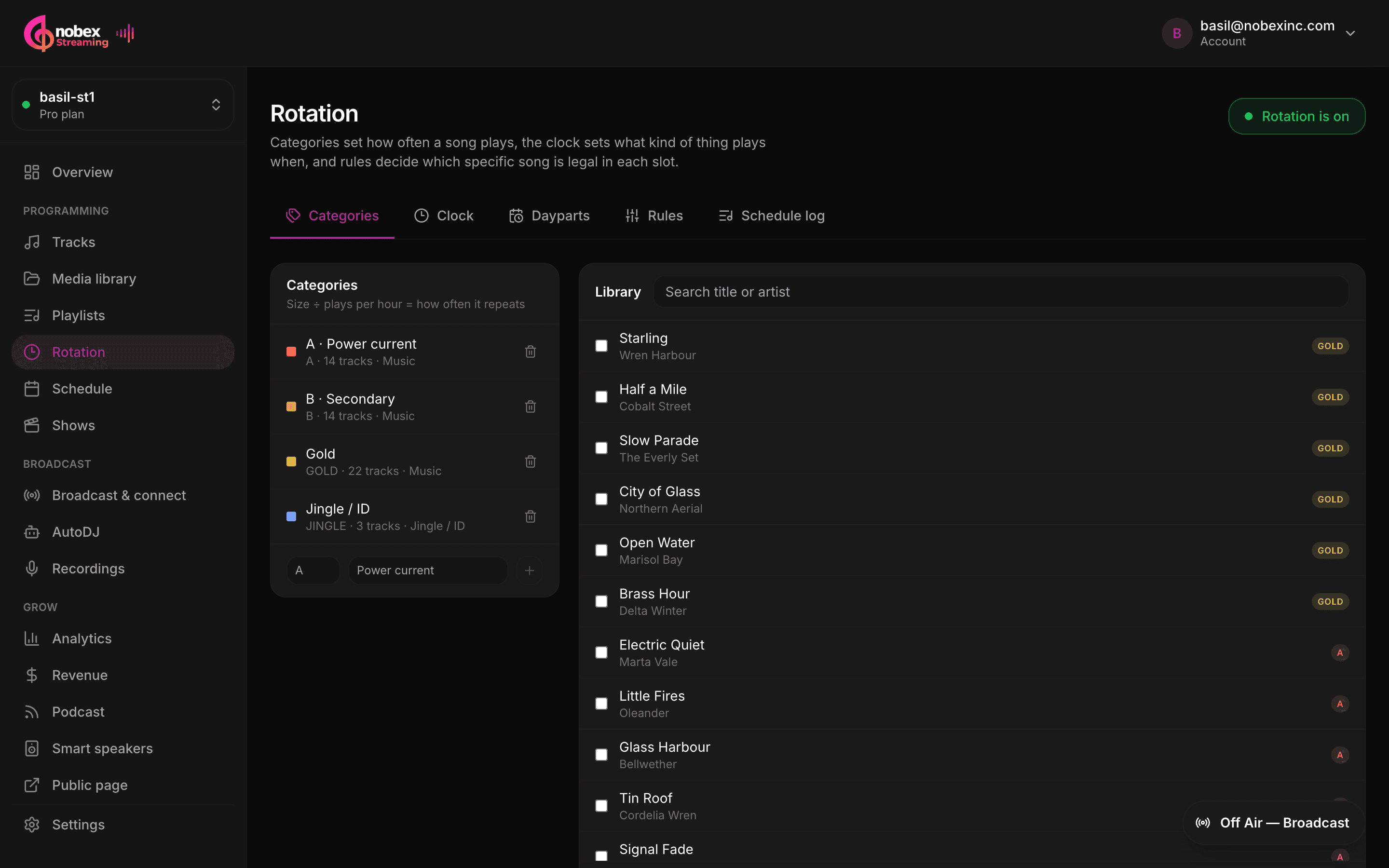
- Select tracks with the checkboxes, then click a category code to file them all at once.
- The same bar sets energy from 1 (ballad) to 5 (uptempo) — that is what the energy-flow rule reads later.
- A track can be in one category. Songs you never filed stay in your library but the clock will not reach them.
- Search is server-side, so it stays fast on a big library.
2. Build the hour
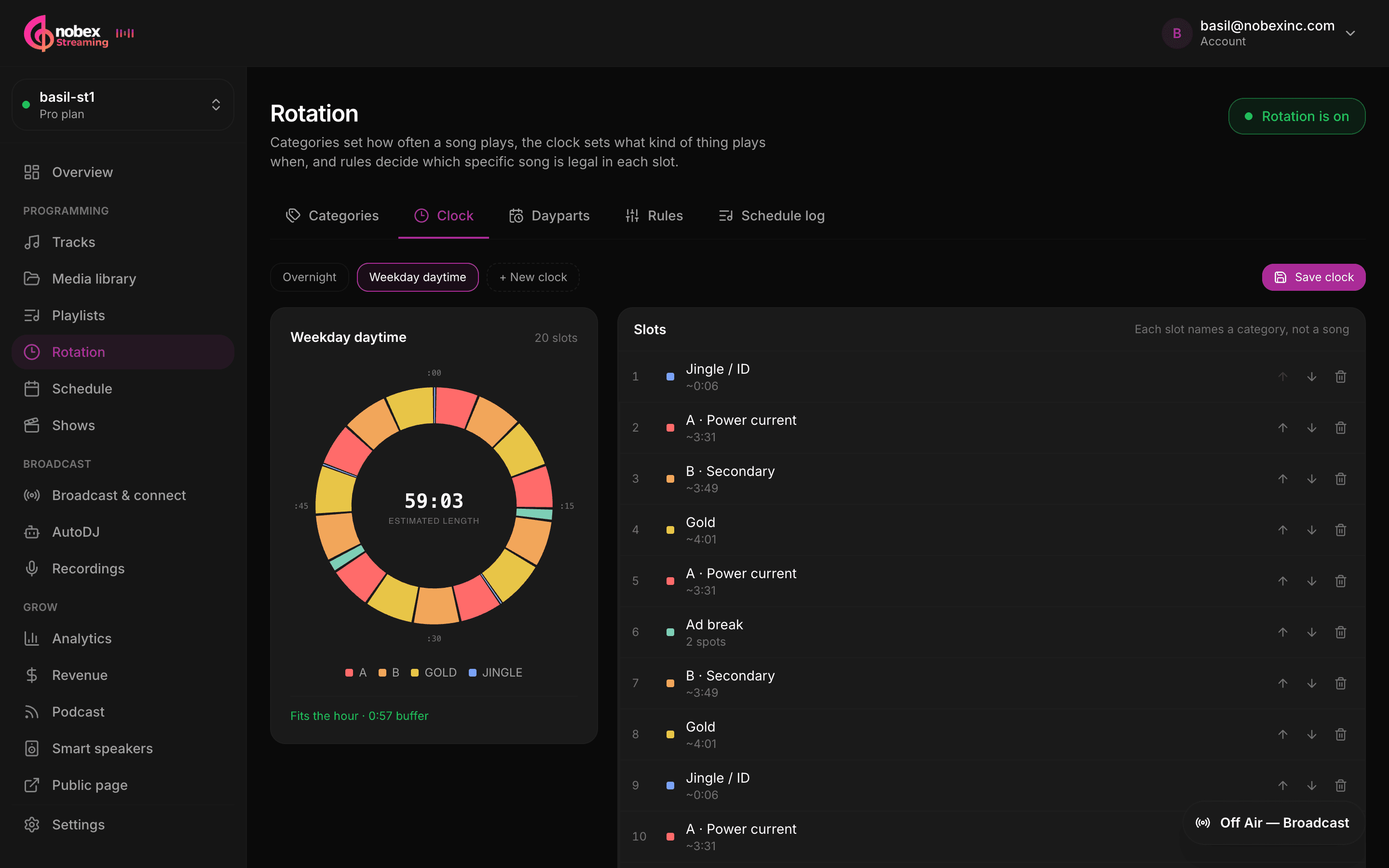
A clock is one hour of your station as a running order — but the slots name *categories*, not songs. "Station ID, then a current, then a secondary, then a gold, then an ad break." The scheduler picks the actual songs later.
Aim to come up slightly short
A good clock runs a minute or two under the hour so your top-of-hour ID lands on time. The editor tells you: *“Fits the hour · 1:32 buffer”* in green. Only an hour that over-runs is flagged as a problem, because that is the one that makes your station drift late.
Ad breaks are slots too. Putting one at roughly :15 and :45 is what advertisers expect — and once a clock is running, your spots air at those positions instead of every N songs.
3. Run a different hour overnight
Breakfast should not sound like 3am. Build a second clock — fewer currents, more gold, no ad breaks — and paint it onto the hours it should run.
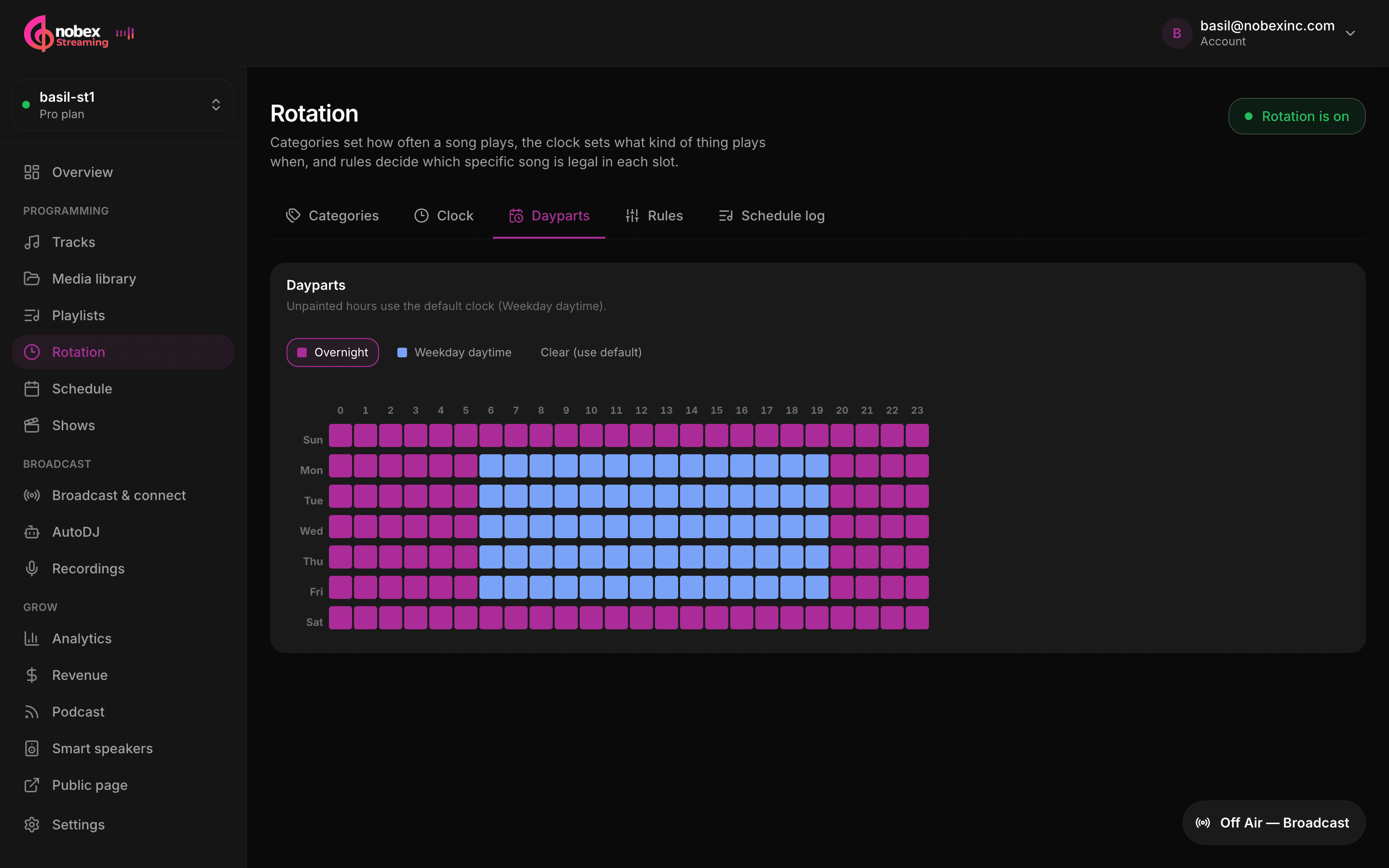
An empty grid is fine
Any hour you leave unpainted uses your default clock. Plenty of stations run one clock around the clock and never touch this screen.
4. Set the rules
Rules decide which specific song is legal in a slot. The preview beside them re-runs the scheduler on every change, so you can see the effect before you commit to anything.
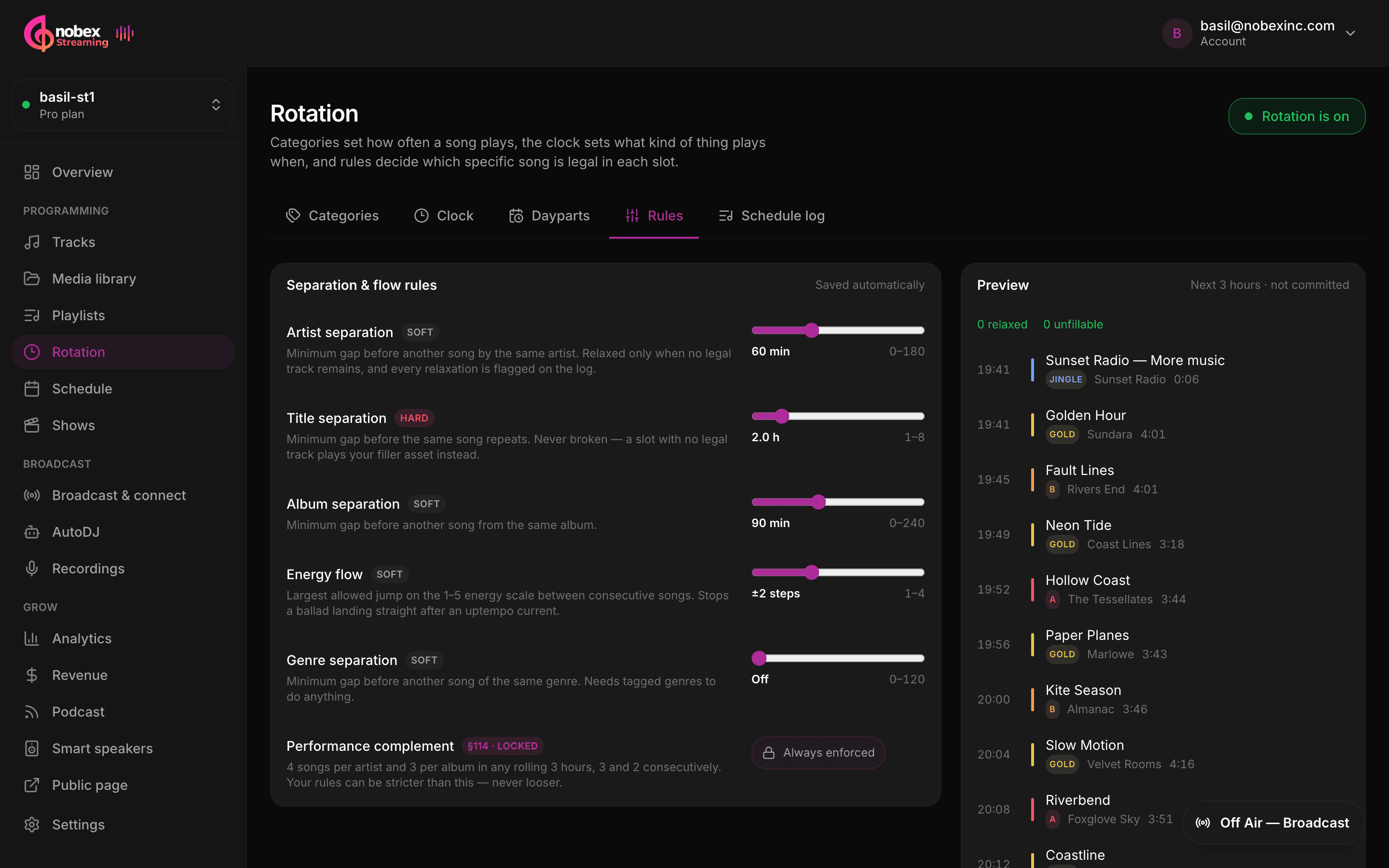
| Rule | Typical setting | What it stops |
|---|---|---|
| Artist separation | 60 min | The same voice coming back too soon |
| Title separation | 2–3 h | The same song repeating inside a listening session |
| Album separation | 90 min | One album dominating the hour |
| Energy flow | ±2 steps | A ballad landing straight after an uptempo current |
| Genre separation | Off by default | Genre clumping — needs tagged genres to do anything |
Hard rules versus soft rules
A hard rule is never broken — if no song qualifies, the slot plays your filler asset rather than breaking the rule. A soft rule is given up only when nothing else fits, and the item is flagged on the log with the reason. Soft rules are relaxed least-important-first, so the rule you care about most survives longest.
5. Read the log before it airs
This is the part shuffle can never give you: the actual running order for the next day, hour by hour, before a note of it plays.
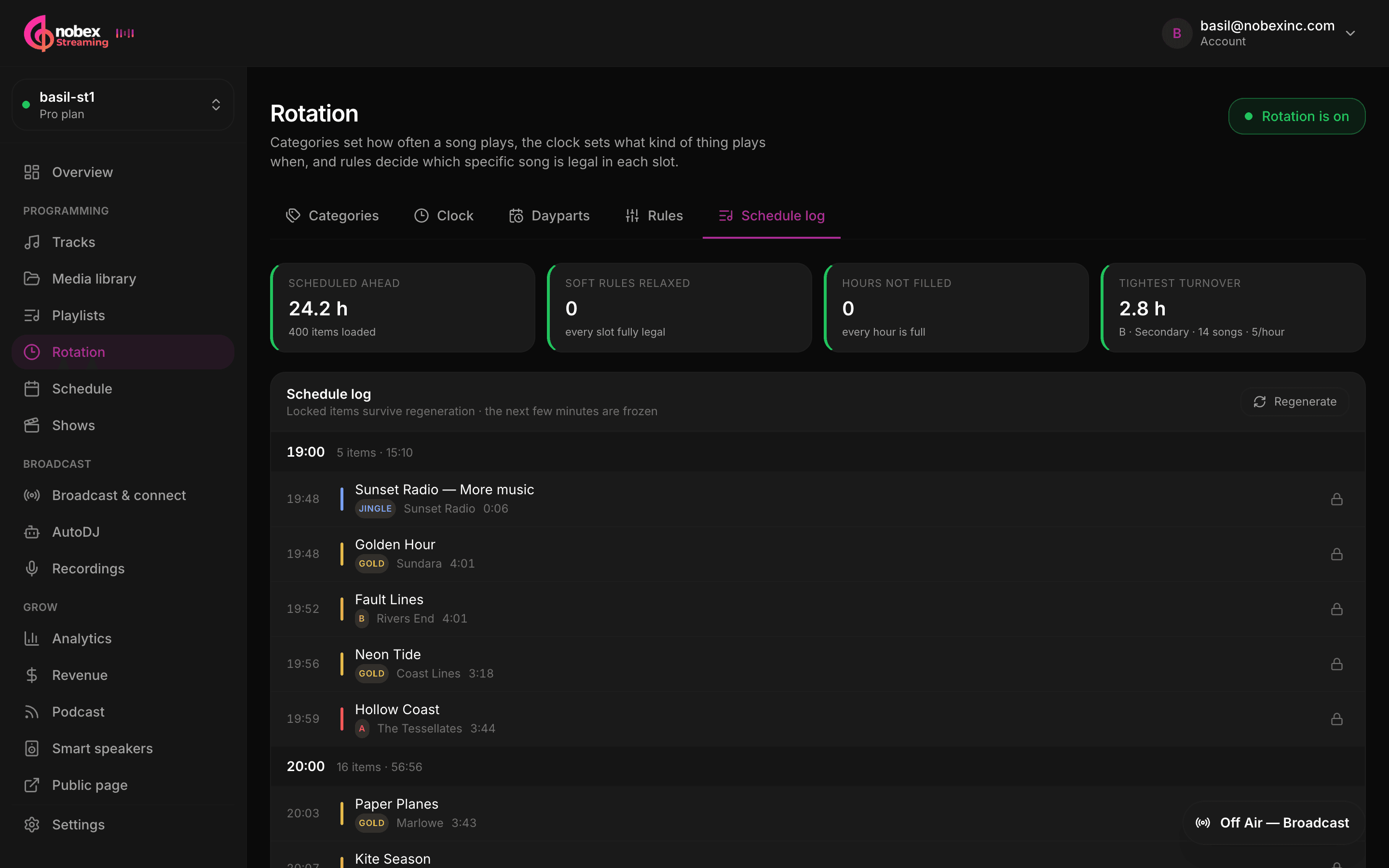
- Lock any item and regeneration will leave it exactly where it is.
- The next few minutes are frozen — changing a rule never yanks the track out from under whatever is on air.
- Anything that had to bend a soft rule carries a chip explaining which one, on the item that caused it.
- Live shows and scheduled programmes still win. The order is live → scheduled show → rotation log → your playlists.
When the maths does not work
This is the single most common support question, and it is almost never a bug. Ask for a 4-hour title separation on a category that only holds 14 songs and the scheduler physically cannot deliver it — so it plays filler, and the station sounds worse than before you touched anything.
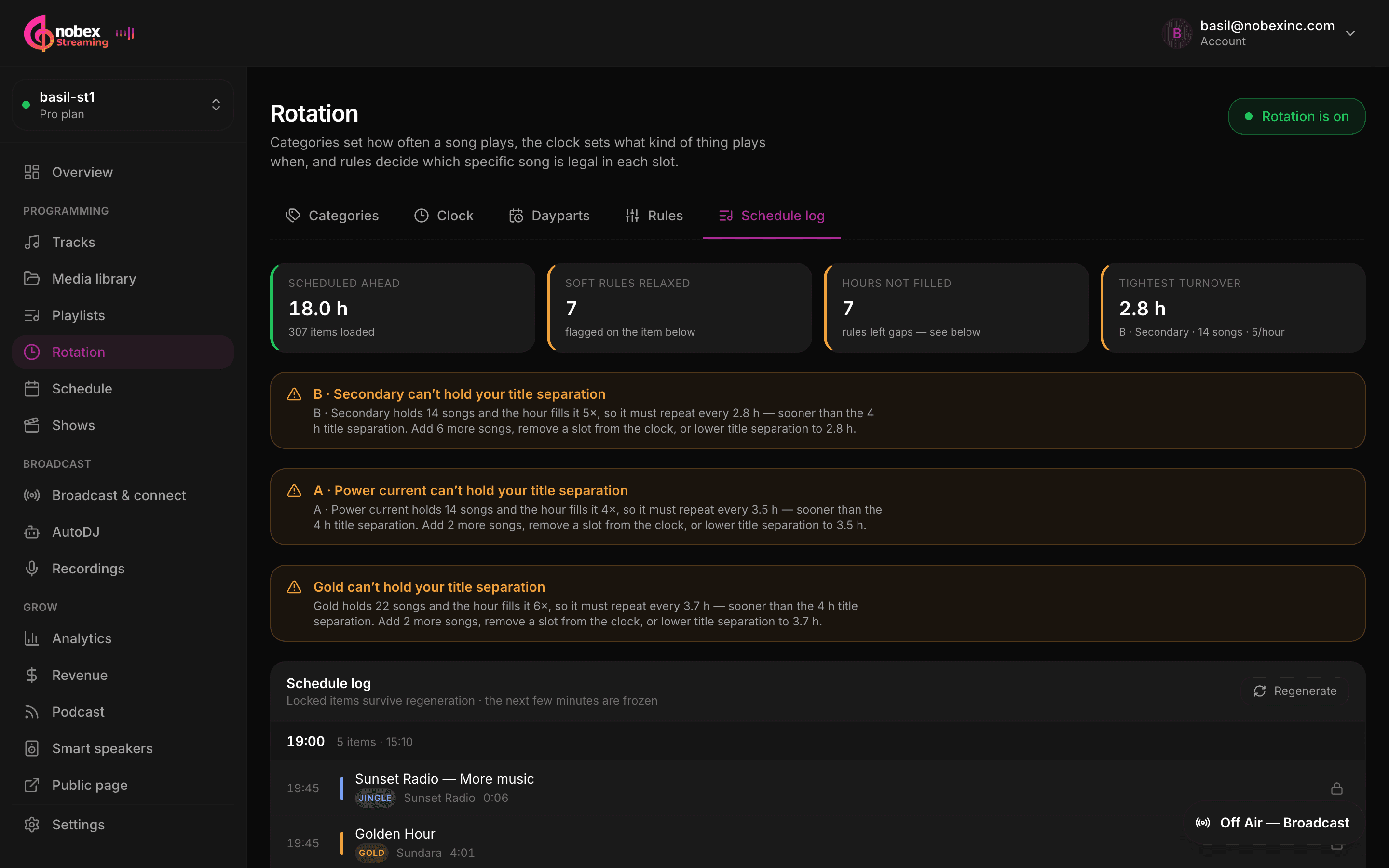
Read the advice, not the symptom
Each warning names the category, the number of songs it holds, how many times an hour your clock plays it, and the three fixes: add songs, remove a slot from the clock, or lower the separation. Any one of them works. Reaching for a different rule usually does not.
There is a second limit that catches small libraries and has nothing to do with your settings. The statutory licence allows at most 4 plays per artist and 3 per album in any rolling 3 hours — so an hour of 15 songs needs at least 12 different artists to be legal, whatever your separation is set to. Rotation checks that too, and tells you the number you need.
Licensing stays handled
The DMCA performance complement is built in, always on, and shown as locked on the Rules tab. Your own rules sit on top of it and can only ever be stricter — never looser. If you set something weaker than the statute, the page says so and the statutory limit still applies.
For the wider picture — ISRC tags, reports of use and what SoundExchange expects — see Metadata, now-playing and royalty reporting.
Turning it on
- 1File your library into categories, starting with A, B and Gold.
- 2Build one clock and check it reads “Fits the hour”.
- 3Set artist and title separation. Leave the rest at their defaults for now.
- 4Open Schedule log and read the next few hours. Fix anything the advisor flags.
- 5Press Turn rotation on. Your station switches to the log at the next track.
Start simple
One clock, artist separation at 60 minutes and title separation at 2 hours already sounds dramatically better than shuffle. Add dayparts and energy flow once that is running — you can always come back.
Keep reading
Ready to put this into practice?
Start a free trial and be on air in under five minutes — no software to install.
Start streaming free