
Now-playing branding and royalty reports
Control the now-playing text listeners see, brand it with a format template and your logo, and export a SoundExchange-ready Report of Use from your play history.
The little line of text that says what's playing is doing a lot of work — it shows up in your web player, embeds, the public page and even listeners' lock screens. This guide covers how to control that text, brand it as your station, add your logo, and turn your play history into the royalty report you file.
Where this lives
Everything here is on the Tracks page under Programming, split into two tabs: Now playing and History.
1. The Tracks page
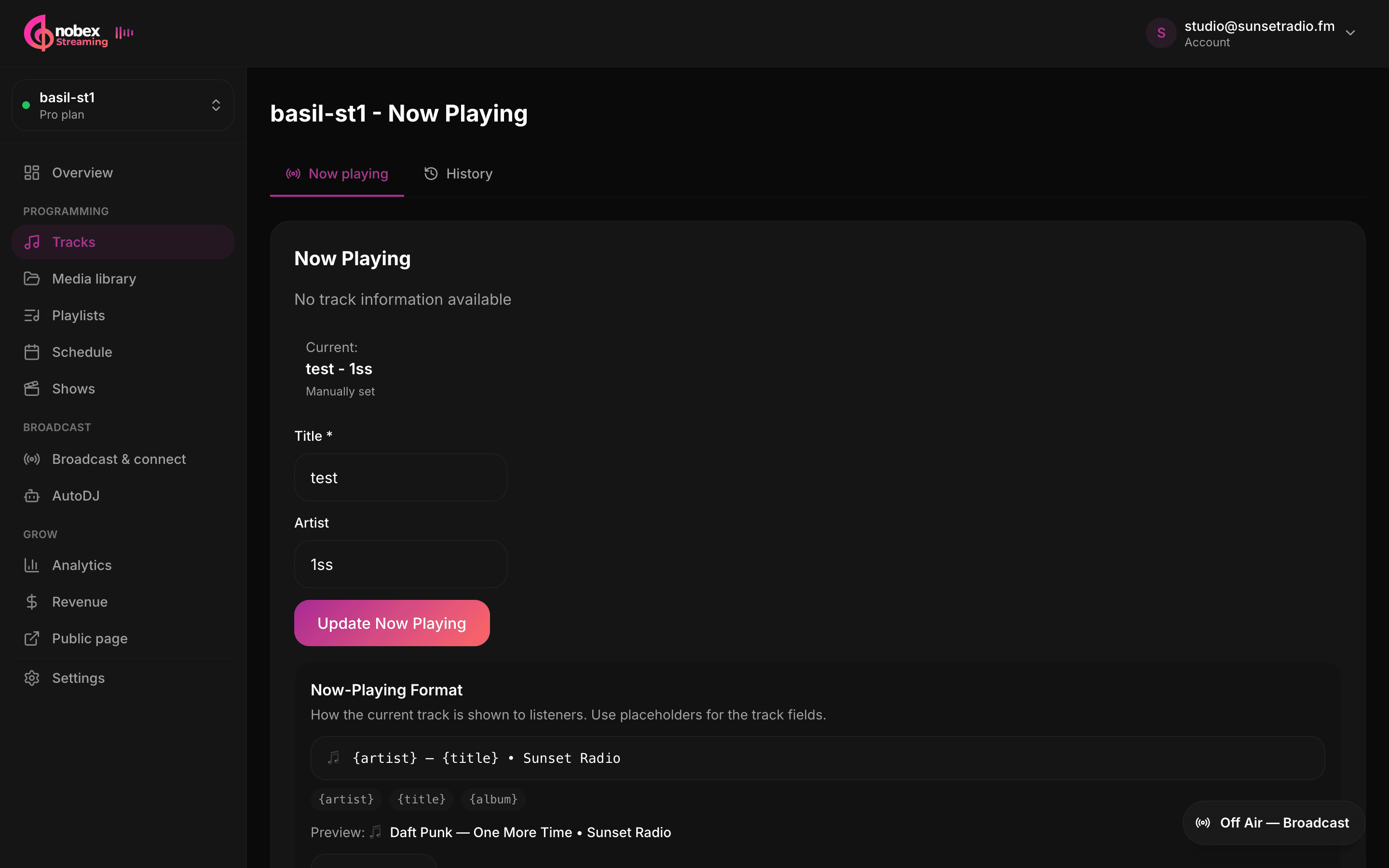
Open Tracks and you'll land on Now playing. The top card shows the current track exactly as listeners see it — rendered through your now-playing format — with a note that it's “Shown through your now-playing format.” The History tab holds your play log and the royalty export. We'll cover both.
2. Set now-playing for live and talk segments
When AutoDJ is playing your library, the now-playing text is filled in from each track's tags automatically. But during a live show, an interview or a talk segment, there's no track to read tags from — so you set it yourself.
- 1In the Now playing tab, type a Title (required) — e.g. *Morning Show with Sam*.
- 2Optionally add an Artist — e.g. your guest's name, or leave it off for talk.
- 3Press Update Now Playing. The card flips to your text and marks it “Manually set.”
Tip
This is perfect for sponsor reads, news, or "you're listening to…" idents. When your next song starts, automatic now-playing takes back over.
3. Brand it with a format template
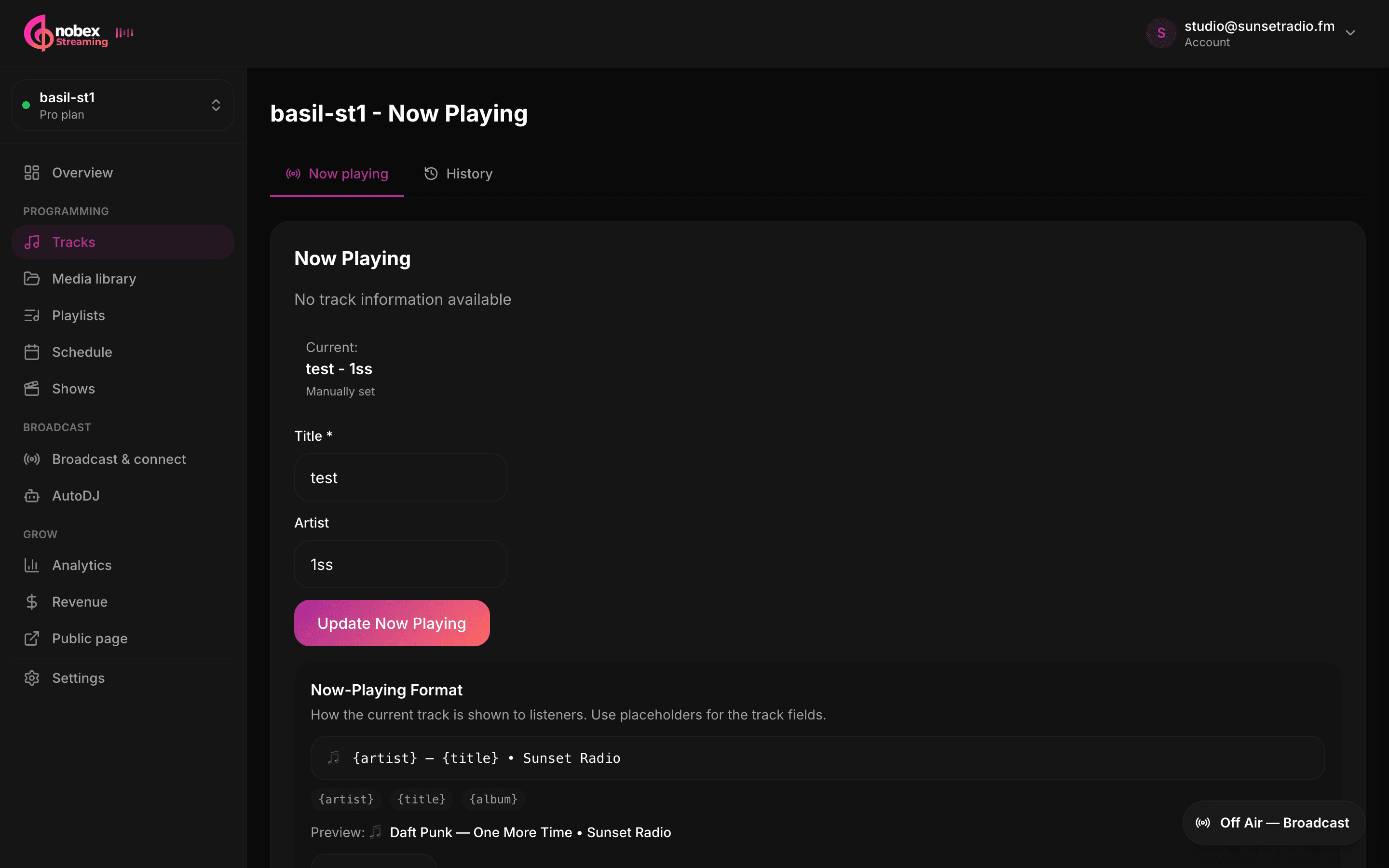
The Now-Playing Format template decides how every track is written out. It uses placeholders you fill with the track's fields:
{artist}— the track artist{title}— the track title{album}— the album
The default is {artist} - {title}, which renders as *Daft Punk - One More Time*. Click a placeholder to insert it, add your own text and branding around it, and watch the Preview update live. Something like {artist} — {title} • MyRadio puts your station name on every song. Hit Save format when it looks right.
Your branding follows the music everywhere
The format template even re-injects onto streams fed by your own encoder (OBS, BUTT, Mixxx and friends). So the station name and styling you set here ride along on every mount — not just Cloud AutoDJ — and reach every player and lock screen the same way.
4. Add your station logo
Scroll to Station Logo and upload an image — it appears in the web player, the mobile apps, and anywhere your stream is embedded. Use a PNG, JPG or WebP up to 3 MB. A clear, square logo reads best in the small artwork slots players give you.
Tip
Combined with your format template, the logo is what turns a bare audio stream into a station listeners recognize at a glance.
5. Play history
The History tab lists your Recent Tracks — what actually aired, most recent first. It's a quick way to confirm your rotation is doing what you expect, spot a track that's repeating too often, or check what played during a specific stretch.
6. Export a SoundExchange Report of Use
If you stream in the US, you likely owe SoundExchange a Report of Use — a per-performance log of what you played. Nobex builds it straight from your play history. In the History tab, find the Royalty report card:
- 1Pick the From and To dates for the period you're filing (it defaults to the current month).
- 2Click Download CSV.
- 3Open the file, verify it, and fill in anything missing before you submit.
The export pulls the ISRC for each track from your library — another reason to keep your tags clean — and deduplicates across sources so a play isn't counted twice. What you get is a ready-to-edit draft, not a final filing.
Tag ISRCs once, report every month in minutes
The report is only as complete as your library tags. Make sure your tracks carry their ISRC codes (Nobex reads them on upload) and each month's Report of Use is mostly filled in for you — just verify and file.
The technical report is ours; the licensing is yours
Nobex helps you produce the report, but you are responsible for your music licensing — holding the right agreements (SoundExchange plus a PRO such as ASCAP, BMI, SESAC or GMR in the US) and filing accurately. Always review the draft before submitting, and consult the licensing bodies for your situation.
What's next
- Keep your ISRC and artist tags clean in your music library.
- Put your branded stream in front of listeners with your public page and embedding.
- Check what your plan includes in plans and billing.
Keep reading
Ready to put this into practice?
Start a free trial and be on air in under five minutes — no software to install.
Start streaming free