
Program your week: schedules and shows
Build a weekly clock with schedule blocks, then run recurring shows that air a recording on the day or go live automatically — with a fallback chain that never lets you go silent.
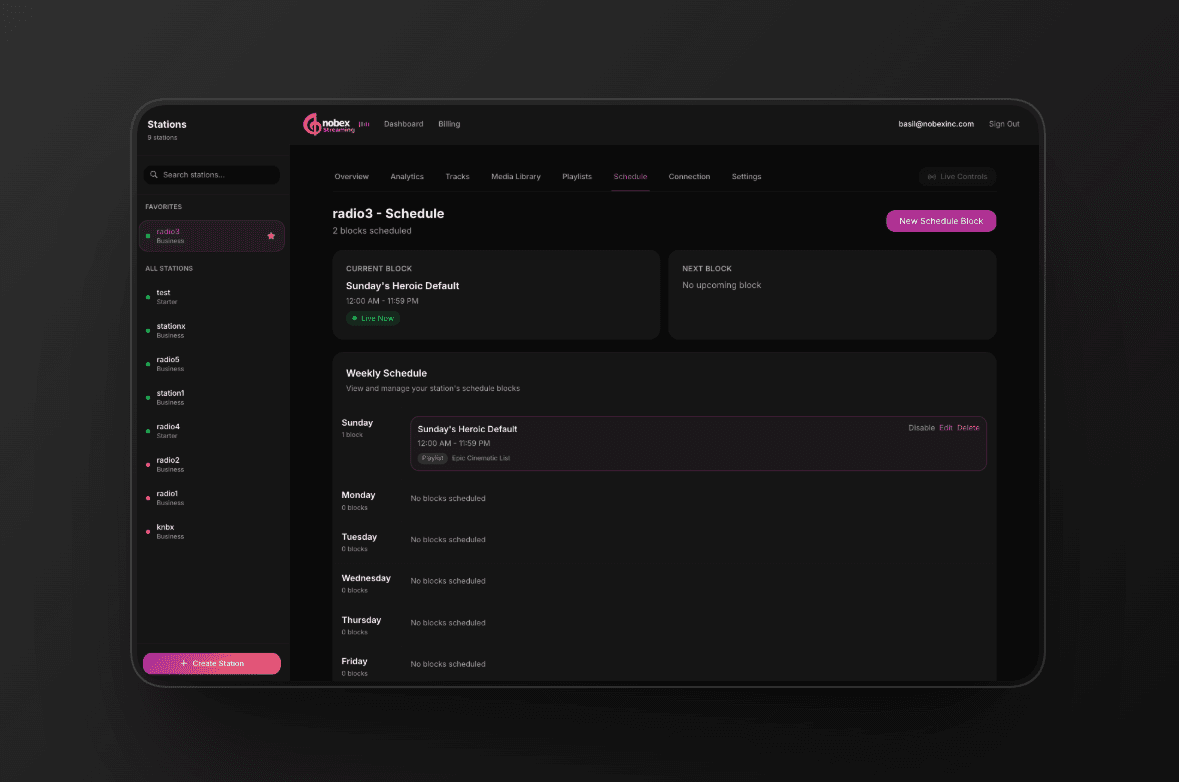
A real station has a clock: chill mornings, high-energy drive-time, a signature show on Friday night. In Nobex you build that clock with schedule blocks and shows, then let the cloud run it for you — day after day, whether or not you're at the desk. This guide walks through both, and the fallback chain that keeps you on air no matter what.
Where this lives
Schedule blocks live under Programming → Schedule; recurring shows and their episodes live under Programming → Shows. The two work together — you create a show *in the Schedule*, then attach episodes to it in Shows.
1. Set your timezone first
Before you build anything, set the zone your schedule runs in. On the Schedule page, next to “Times shown in”, pick your timezone. Every block's start and end time is evaluated in that zone, and your Current and Next block cards update immediately.
Do this before you add blocks
If you set times first and change the timezone later, every block shifts. Choosing your zone up front means the 7:00 AM you type is the 7:00 AM your listeners hear.
2. Add schedule blocks
A block is a recurring slot on your weekly clock. Click New Schedule Block and fill in the form:
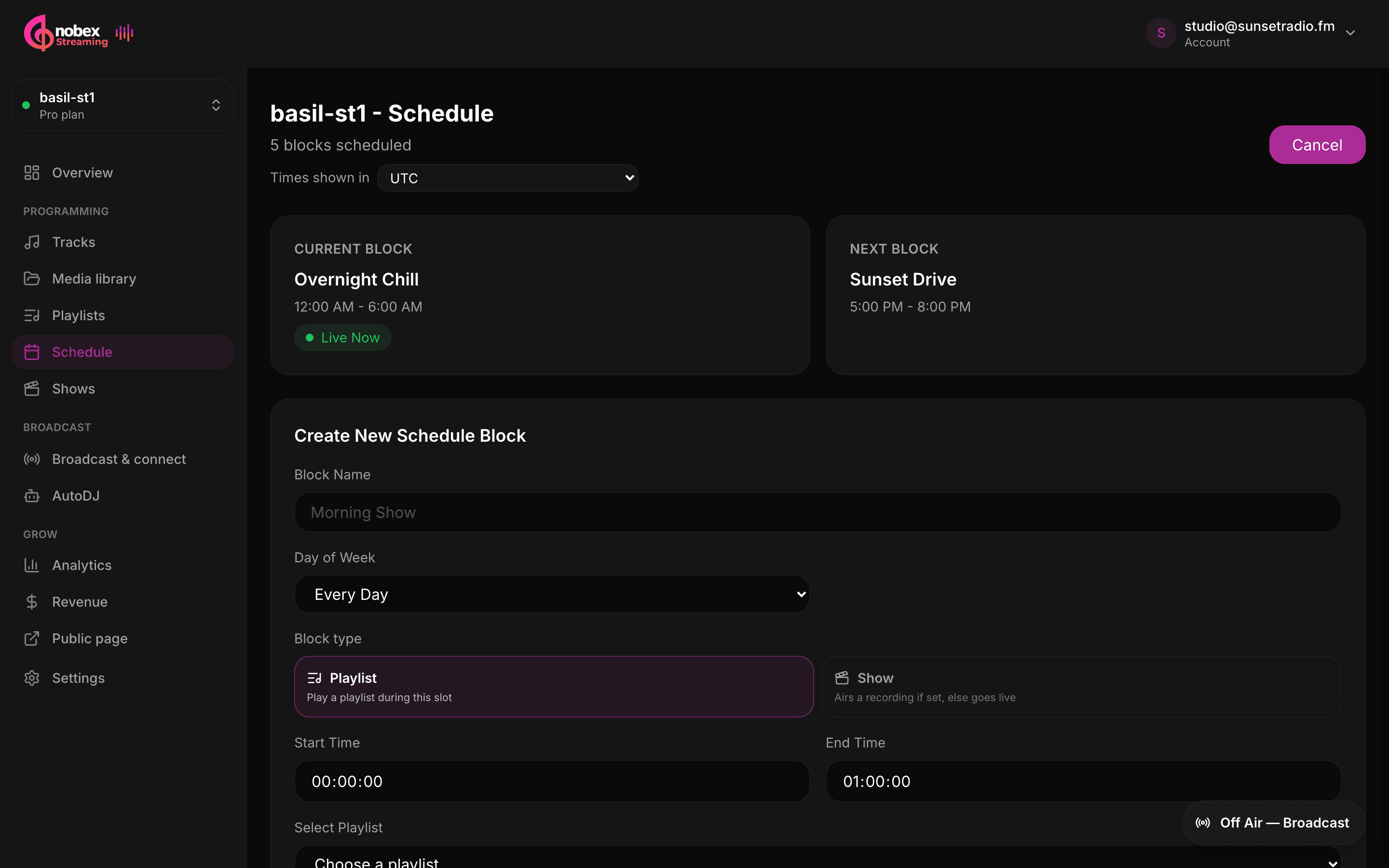
- Block Name — what this slot is, e.g. *Morning Show*.
- Day of Week — a specific day, or Every Day for a slot that repeats daily.
- Block type — Playlist (play a playlist during the slot) or Show (air a recording if one is set, else go live). More on Show blocks below.
- Start Time / End Time — down to the second, so blocks can butt right up against each other.
- Priority — used to resolve overlaps (see below).
- Enabled — untick to keep a block without running it.
For a Playlist block, a Select Playlist dropdown appears — choose which playlist fills the slot. Save with Create Block, and it drops onto your weekly grid.
Tip
Build your playlists first (see Build your music library and playlists) so they're ready to pick here.
3. Priority and conflict warnings
When two enabled blocks cover the same moment, priority decides the winner — the higher number wins. A daily *Rock Rotation* at priority 0 with a Friday *Live Session* at priority 10 means the live session takes over Friday and rock fills every other day, no editing required.
If a block you save overlaps another, Nobex shows a conflict warning telling you how many blocks clash. It won't stop you — overlaps are often intentional — but it's your cue to check the priorities line up.
Use priority for special programming
Keep an everyday baseline at priority 0 and layer specials — holiday sets, a live remote, a countdown — on top at a higher priority. You get seasonal programming without ever deleting your normal rotation.
4. Calendar, list and the current/next cards
Toggle between Calendar and List views. Calendar lays your blocks out across the week, day by day, so you can see gaps and pile-ups at a glance. List shows every block in one scannable column. From either, you can Enable/Disable, Edit or Delete a block.
At the top, the Current Block and Next Block cards tell you exactly what's airing now (marked Live Now) and what's up next — a quick confidence check that your clock is doing what you think.
5. Shows and episodes
A Show is a recurring slot that's smarter than a playlist. Create it as a Show block in the Schedule, then open Programming → Shows to attach episodes — a specific recording or playlist for a specific date.
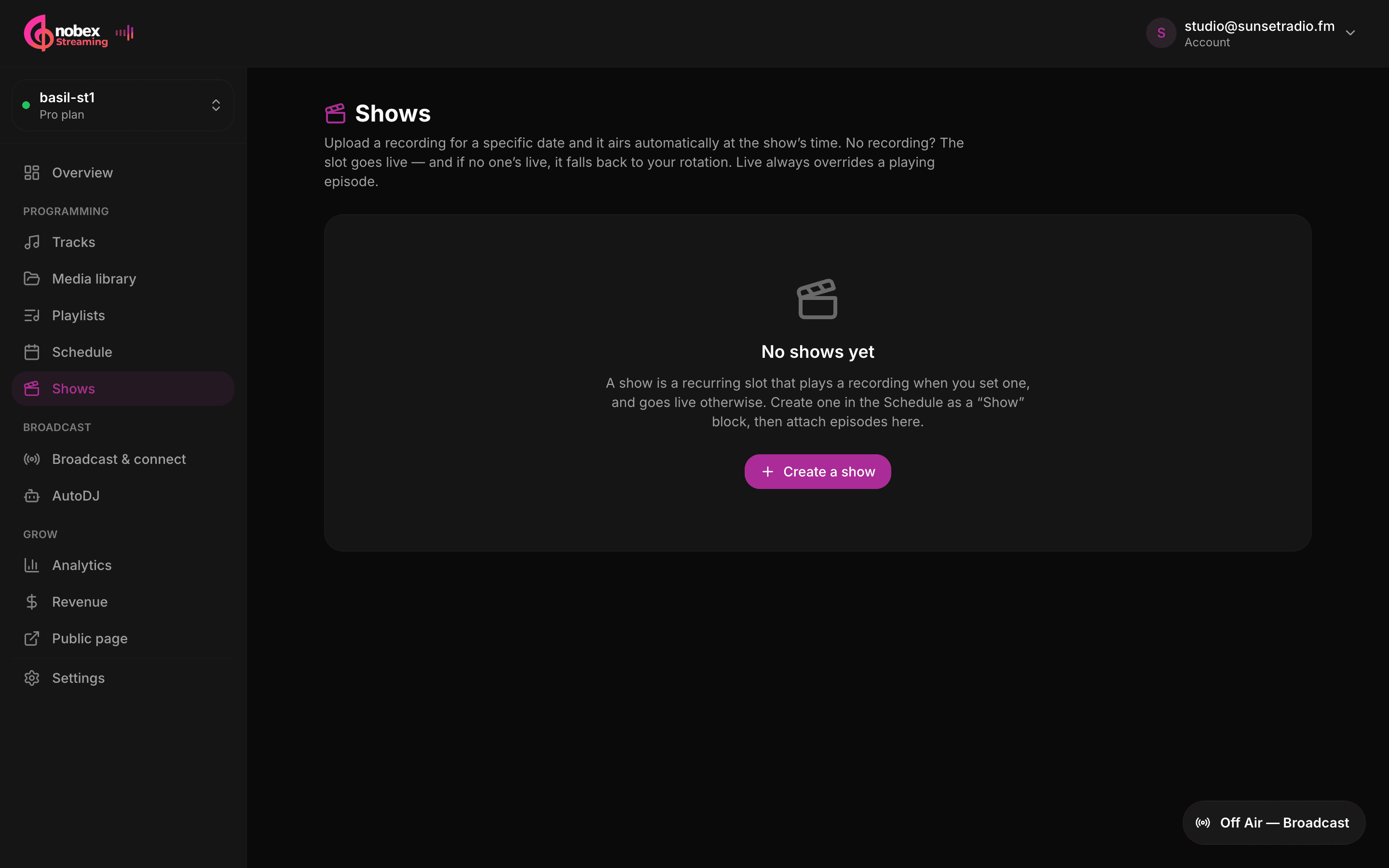
On a show card, use the attach form: pick an Air date, choose a Source of track or playlist, select the Recording or Playlist, and hit Attach. Here's what airs on the day:
- If an episode is set for that date, it airs automatically at the show's time.
- If no episode is set, the slot goes live — ready for you to broadcast.
- If no one is live, it falls back to your rotation so the slot is never empty.
Live always wins
Even while an episode is playing, going live overrides it — grab the mic mid-episode and you're on. It's the safety valve for breaking news, a caller, or a guest who shows up early.
Uploaded recordings need a moment to process. Each episode shows a status: Processing while Nobex prepares it, Ready when it's good to air, or Failed if something went wrong with the file. Attach episodes a little ahead of time so they're Ready before their date.
Upload recordings to the Media library first
A show episode plays a track (recording) or playlist that already exists in your station. Upload the recording under Media library before you go to attach it, and it'll be waiting in the Recording dropdown.
6. The fallback chain
Everything above rolls up into one rule that keeps you on air. At any moment, Nobex works down this chain and plays the first thing that applies:
- Schedule — the winning block for right now (by priority).
- Show episode — the recording set for today, if this is a show slot.
- Live mic — whoever's broadcasting always overrides.
- Library rotation — your music keeps playing when nothing else is set.
- Silence guard — a final safety net if a source drops, so dead air never reaches listeners.
Tip
The practical takeaway: you can program as much or as little as you like. An empty schedule just means AutoDJ rotates your library 24/7 — and every layer you add refines that without ever risking silence.
What's next
- Stock your slots with playlists and rotation modes.
- Point AutoDJ at your schedule in the Cloud AutoDJ guide.
- New here? Start with the Quick Start guide.
Keep reading
Ready to put this into practice?
Start a free trial and be on air in under five minutes — no software to install.
Start streaming free